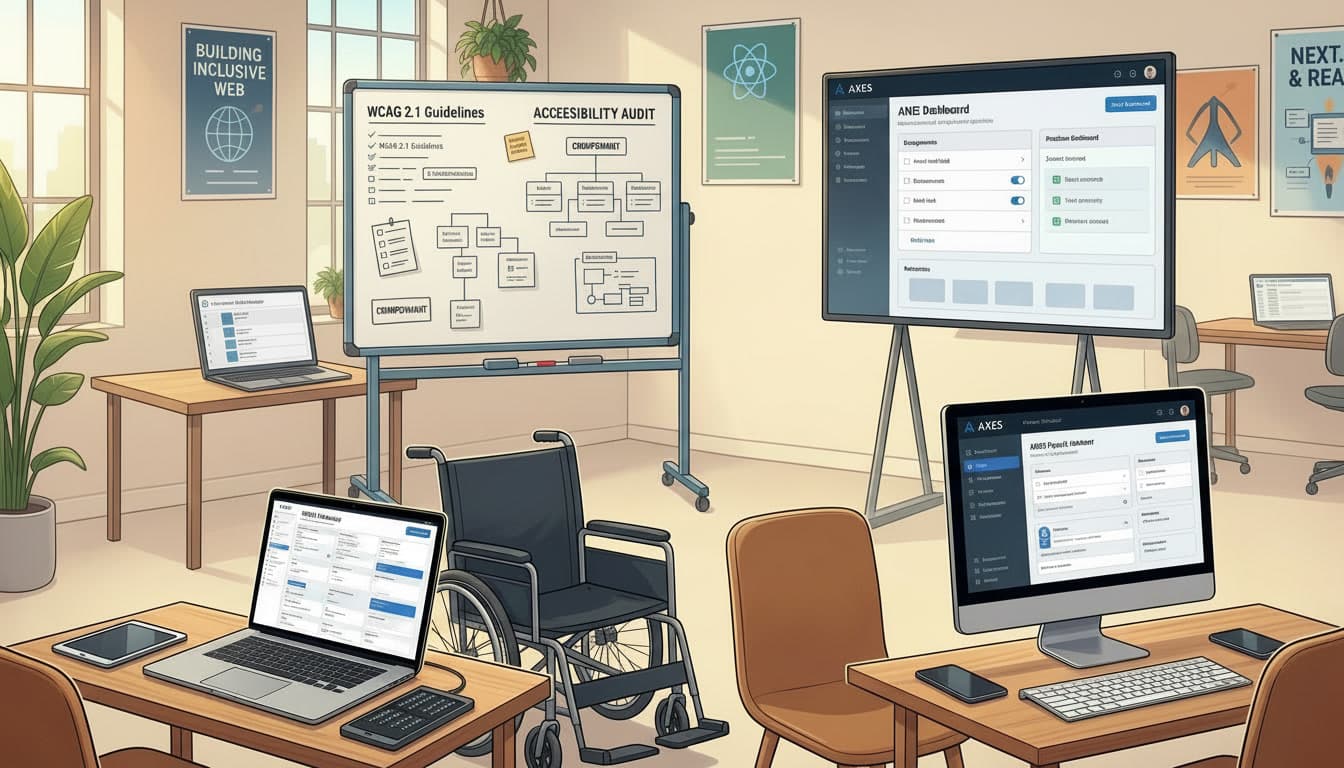
Why Accessibility Matters More Than Ever
Accessibility (a11y) ensures that your application can be used by everyone, including people with disabilities. But beyond compliance, accessibility also improves:
- SEO rankings (search engines favor semantic HTML)
- Performance (cleaner, lighter markup)
- Usability for all users
In 2026, accessibility is not a feature—it's part of your architecture.
#1 Server-First Rendering Improves Accessibility
Next.js 16's Server Components play a huge role in accessibility.
Why It Matters
- Content is immediately available in HTML
- Screen readers can access content without waiting for JavaScript
- Faster first meaningful paint
export default async function Page() {
  const posts = await getPosts();
  return (
    <main>
      <h1>Blog Posts</h1>
      <ul>
        {posts.map(post => (
          <li key={post.id}>{post.title}</li>
        ))}
      </ul>
    </main>
  );
}- Critical UI is always server-rendered
- Screen readers get content instantly
- No JavaScript dependency for initial content
#2 Use Semantic HTML by Default
Accessibility starts with proper HTML—not ARIA.
Good vs Bad Example
Good:
<button>Submit</button>Bad:
<div role="button">Submit</div>Why Semantic HTML Wins
- Built-in keyboard support
- Better screen reader compatibility
- Less code to maintain
Best Practices
- Use <header>, <main>, <nav>, <section>
- Use proper heading hierarchy (h1 → h2 → h3)
- Avoid unnecessary divs
- Screen readers correctly announce element purposes
- Keyboard navigation works without custom JavaScript
- Less code to maintain
#3 Accessible Client Components
Client Components introduce interactivity—but also risk breaking accessibility.
Common Problem
Custom UI elements without proper accessibility support:
'use client';

<div onClick={handleClick}>Click me</div>
Accessible Version
'use client';

<button onClick={handleClick}>
  Click me
</button>
If You Must Use Custom Elements
Add proper attributes:
<div role="button" tabIndex={0} onKeyDown={handleKey}>
  Click me
</div>- Interactivity is always keyboard accessible
- Custom elements are announced correctly by screen readers
#4 Manage Focus Correctly
Focus management is critical for accessibility, especially in dynamic apps.
Common Issues
- Focus lost after navigation
- Modals not trapping focus
- Keyboard users getting stuck
Programmatic Focus Control
'use client';

import { useEffect, useRef } from 'react';

export default function Modal() {
  const ref = useRef(null);

  useEffect(() => {
    ref.current?.focus();
  }, []);

  return <div tabIndex={-1} ref={ref}>Modal Content</div>;
}
Best Practices
- Move focus on route changes
- Trap focus inside modals
- Ensure visible focus states
- Focus is never lost or stuck
- Modals are fully keyboard-operable
- Visible focus indicators for keyboard users
#5 Accessible Data Fetching and Loading States
With streaming and Suspense in Next.js 16, loading states are everywhere. Screen readers may not understand loading transitions.
Use ARIA Attributes
<div aria-busy="true">
  Loading...
</div>
With Suspense
<Suspense fallback={<Loading />}>
  <Content />
</Suspense>
Ensure fallback components are accessible.
- Better screen reader experience
- Clear UI state communication
#6 Forms That Actually Work for Everyone
Forms are one of the most critical accessibility areas.
Best Practices
- Always use <label>
- Provide error messages
- Use descriptive placeholders
<label htmlFor="email">Email</label>
<input id="email" type="email" required />
Error Handling
<p role="alert">Email is required</p>- Accessible forms improve conversion rates
- Error states are announced to screen readers
- All form fields have proper labels
#7 Reduce Motion and Respect User Preferences
Modern apps often include animations—but not all users want them.
Respect prefers-reduced-motion
@media (prefers-reduced-motion: reduce) {
  * {
    animation: none !important;
  }
}- Prevents motion sickness
- Improves usability for users with vestibular disorders
Common Accessibility Mistakes in Next.js Apps
- Overusing divs instead of semantic elements
- Ignoring keyboard navigation
- Missing labels in forms
- Poor focus management
- Inaccessible loading states
Accessibility Checklist for 2026
Before shipping your app:
- Is all content accessible without JavaScript?
- Are semantic HTML elements used correctly?
- Can the app be navigated with a keyboard?
- Are loading states screen-reader friendly?
- Are forms fully accessible?
Final Thoughts
Accessibility in Next.js 16 is not about adding fixes later—it's about building inclusive systems from the ground up. React 19 and Next.js 16 make it easier than ever to:
- Deliver accessible HTML instantly
- Reduce reliance on client-side rendering
- Build faster, more inclusive user experiences
Accessibility is no longer just a requirement—it's a competitive advantage.
Key Takeaways
- 1Use Server Components for accessible content
- 2Prefer semantic HTML over ARIA
- 3Ensure keyboard accessibility
- 4Manage focus properly
- 5Build accessible loading states and forms